
✧ Key takeaways
Learn how to check if a WordPress plugin is safe before installing it. This practical checklist covers vulnerabilities, updates, support activity, disclosure processes, permissions, and plugin risk.
How to check a WordPress plugin before you install it ?
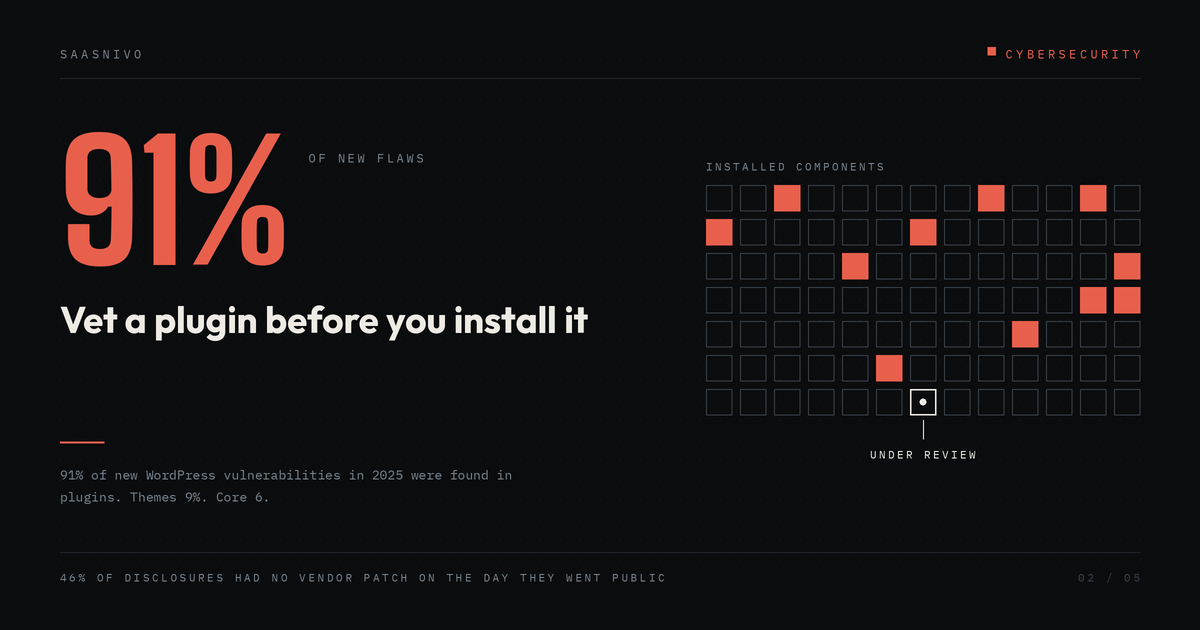
Most people pick a plugin the same way. Search the repository, sort by relevance, glance at the star rating and the active install count, hit install. The whole thing takes forty seconds.That routine made more sense a decade ago. Plugins now account for 91% of new WordPress vulnerabilities according to Patchstack's 2026 security report, and the star rating tells you how happy people were with the feature, not whether the code handles authorization correctly. Here is a slower routine. It takes about ten minutes per plugin, which sounds tedious until you compare it to cleaning up a compromised site.
Search the vulnerability databases first
Before anything else, look up the plugin's history in the two public databases.
The Patchstack database at patchstack.com/database and the WPScan database at wpscan.com both let you search by plugin name and see disclosed vulnerabilities, affected versions and severity scores. This takes under a minute and it is the single highest-value check on the list. What you are reading for is not "has this plugin ever had a vulnerability." Almost everything of any size has. You are reading for pattern. A plugin with three disclosures over six years, each patched promptly, is behaving normally. A plugin with eleven disclosures in eighteen months, several of them unauthenticated privilege escalation or arbitrary file upload, is telling you something about the codebase and the team. Pay particular attention to repeated issues of the same class. A vendor who shipped an authorization bypass, fixed it, then shipped another one in a different endpoint six months later has a structural problem, not a bad day.
Read the changelog, not the "last updated" date
The repository shows a last-updated date. Plugin authors know this and some of them bump the version with a cosmetic change to keep the date fresh. Open the changelog instead and read the last year of entries. You are looking for whether the releases contain real work. Security fixes mentioned by name are a good sign, not a bad one, because it means the author is disclosing rather than quietly patching. Compatibility bumps and nothing else, repeated for a year, usually means the plugin is in maintenance mode at best. Also check the support forum. Not the rating, the forum. Sort by unresolved and see whether anyone from the vendor is answering. A plugin with 200,000 installs and three months of unanswered threads is functionally abandoned even though the listing looks alive.
Check whether the vendor has a disclosure process
This one is new and most guides have not caught up to it yet.
Under the EU Cyber Resilience Act, Regulation (EU) 2024/2847, reporting obligations took effect on 11 September 2026. Manufacturers of products with digital elements placed on the EU market must notify ENISA and the coordinating national CSIRT of actively exploited vulnerabilities and severe incidents, with an early warning inside 24 hours, a fuller notification inside 72 hours, and a final report within 14 days of a fix being available. Non-compliance can carry fines up to 15 million euros or 2.5% of worldwide annual turnover, whichever is larger. Open-source stewards sit under a narrower regime in Article 24, limited to actively exploited vulnerabilities. Commercial WordPress plugins sold to European users are in scope. Patchstack has argued for a while that this pushes every commercial plugin toward having a vulnerability disclosure program, and it maintains a public directory of vendors running one. For your purposes as a buyer, the practical question is simple. Does this vendor have a documented way to receive security reports, a security.txt file, a disclosure page, a listed contact? If a researcher cannot reach them, bugs go unreported or go public unpatched. Patchstack found that 46% of vulnerabilities in 2025 had no fix available by the time they were disclosed. A functioning disclosure process is one of the few visible signals that a vendor is on the right side of that number.
Do not assume paid means safer
This is the assumption I would most like to kill.
Patchstack's focused research into premium marketplaces produced 1,983 valid vulnerability reports for premium or freemium components, 29% of their total. Of those, 76% were rated exploitable in real attacks. Premium components carried three times as many known exploited vulnerabilities as free ones, and Patchstack's zero-day program turned up 33 highly critical issues in premium components against 12 in free ones.
The mechanism is not mysterious. Security researchers audit what they can read. Free plugin code is sitting there in the repository. Premium code has to be purchased first, so fewer people look, so fewer bugs get found and reported. A clean vulnerability record on a paid plugin might mean the code is solid. It might also mean nobody has checked.
If you are buying from a marketplace like Envato, the item rating is a measure of how well the thing works, and nothing more.
Ask what the plugin is allowed to touch
You will not read the source of every plugin you install. But you can reason about category risk in about thirty seconds.
Broken access control was the most exploited vulnerability category Patchstack blocked in 2025, and it is hard to filter because exploit requests look like ordinary authenticated traffic. Plugins that touch user roles, registration, membership, or any form of permission logic sit directly in that blast radius. So do plugins that accept file uploads, expose REST endpoints to unauthenticated users, or run scheduled tasks with elevated privileges.
A plugin that adds a shortcode for a pricing table is a different risk proposition to a plugin that manages customer accounts. Spend your vetting time where it matters.
The question most people skip : Do you need this plugin at all?
Every plugin is code you did not write, running with full database access, that you have now committed to monitoring for as long as the site exists. A fair number of installs solve problems that a theme setting, twenty lines in a child theme, or simply not having that feature would solve better. I would rather run a site with nine plugins I can name and justify than twenty-five I inherited. The maintenance load is lower, the attack surface is smaller, and when something breaks the list of suspects is short.
Installing it properly
If the plugin clears the checks, a few habits are worth keeping.
Install on staging first if you have one. Watch the site for a day before assuming it is fine.
Delete what you do not use rather than deactivating it. Deactivated plugin files still sit on disk and can still be reachable depending on how they are written. Deactivation is a UI state, not a security control. Write down what each plugin is for. Six months later, when you are deciding whether the thing called wp-optimizer-pro can go, a one-line note will save you an hour. And keep an eye on ownership changes. Plugins get sold. A trusted plugin acquired by a new owner is effectively a new plugin with an inherited reputation, and the repository will not flag it for you.
---
Featured in this guide
 Paid
PaidNordLayer
PaidNordLayer brings NordVPN's infrastructure to business network security — remote access, Zero Trust, and traffic encryption.
 Paid
PaidNordVPN
PaidNordVPN is one of the most recognized consumer VPNs, with fast speeds and a large server fleet.